> ## Documentation Index
> Fetch the complete documentation index at: https://developer.tryfinch.com/llms.txt
> Use this file to discover all available pages before exploring further.
# Provider Sandboxes
> Use Provider Sandboxes to test up to five connections with live providers for free. Test with demo accounts or trial accounts that you create in the provider system.
Provider sandboxes allow you to test a full end to end flow including connect to an external system via Finch, modify data directly in that system, and see those changes reflected in API calls to Finch. This can be extremely valuable in the early days of testing to understand the end to end flow of data and to ensure that your application is working as expected.
Assisted functionality is not supported in the Provider Sandbox.
## Connecting to a Provider Sandbox
A Connect session must be created before launching Connect, and the session must declare what type of sandbox connection is being created.
`finch` and `provider` are the only acceptable values for the `sandbox` key when creating a session.
See [Finch Sandbox](/implementation-guide/Test/Finch-Sandbox) for how to use `finch` mode.
[Create a new Connect session](/api-reference/connect/new-session) and set `"sandbox": "provider"` in the request body. Launch the session to connect to the provider's test environment.
Because these are external provider connections, Finch allows a maximum of 5
active provider sandbox connections per application.
## Demo Accounts
Some providers support sandbox environments which allow you to create companies, add and modify employees, and often even run payroll, enabling you to understand the true behavior of the system in a safe environment. Finch supports connecting to several of these sandboxes via your Sandbox application.
### Gusto
Complete the following steps to connect to Gusto's sandbox environment:
1. [Sign up for a developer account](https://dev.gusto.com/accounts/sign_up). If you already have a developer acccount from following the [Gusto integration setup instructions](/integrations/guides/Gusto), you may skip this step.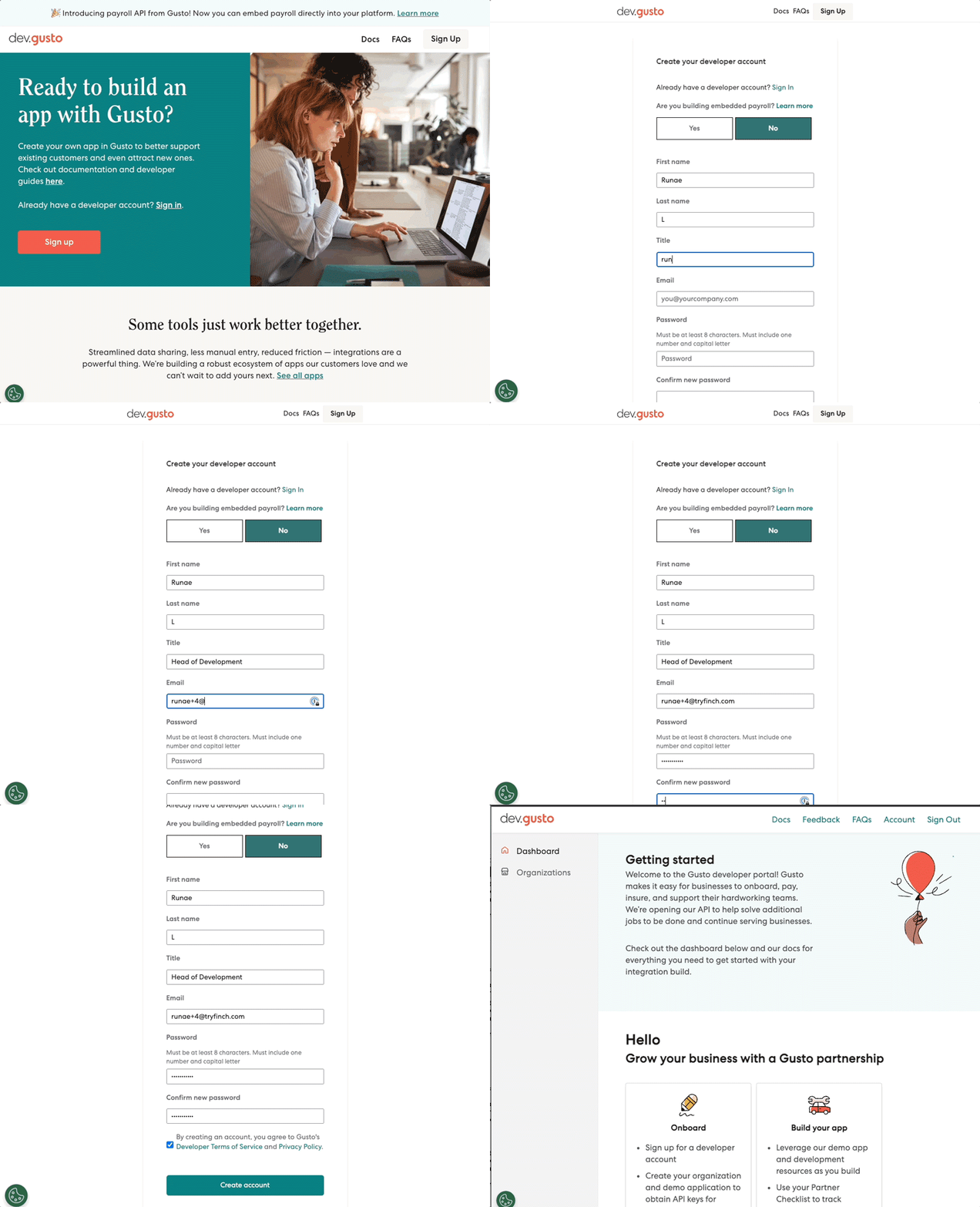 2. Under the "Demo Companies" tab, select "Create demo company".
3. Once this company is created, you will be provided with a set of credentials.
2. Under the "Demo Companies" tab, select "Create demo company".
3. Once this company is created, you will be provided with a set of credentials. 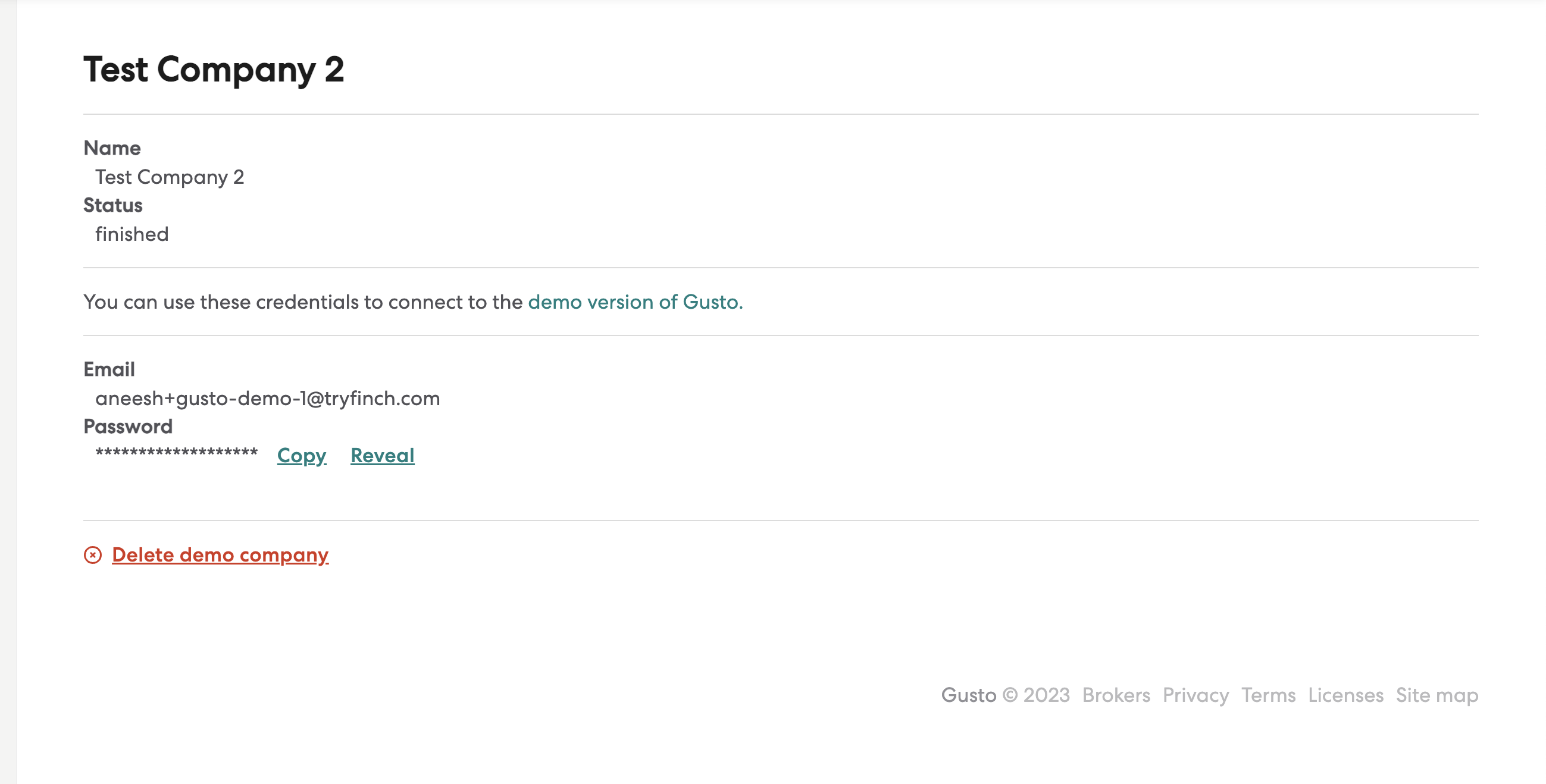 You may log in to this sandbox company at [https://app.gusto-demo.com/login](https://app.gusto-demo.com/login). This will allow you to view the company and make any modifications you wish to test various scenarios.
4. To connect to this company via Finch, follow the steps outlined above to configure Finch Connect to display provider sandboxes, select Gusto, and input the credentials into Gusto's OAuth flow. Upon successfull completion of Connect, you will have a working Gusto sandbox connection!
### Deel
Complete the following steps to connect to Deel's sandbox environment. See the [Deel developer docs](https://developer.deel.com/docs/sandbox) for information on Deel sandbox limitations.
1. [Sign up for a demo account](https://demo.letsdeel.com/create-profile?user-type=client). You may fill in any dummy information in the signup forms, including a dummy company name and tax ID.
You may log in to this sandbox company at [https://app.gusto-demo.com/login](https://app.gusto-demo.com/login). This will allow you to view the company and make any modifications you wish to test various scenarios.
4. To connect to this company via Finch, follow the steps outlined above to configure Finch Connect to display provider sandboxes, select Gusto, and input the credentials into Gusto's OAuth flow. Upon successfull completion of Connect, you will have a working Gusto sandbox connection!
### Deel
Complete the following steps to connect to Deel's sandbox environment. See the [Deel developer docs](https://developer.deel.com/docs/sandbox) for information on Deel sandbox limitations.
1. [Sign up for a demo account](https://demo.letsdeel.com/create-profile?user-type=client). You may fill in any dummy information in the signup forms, including a dummy company name and tax ID.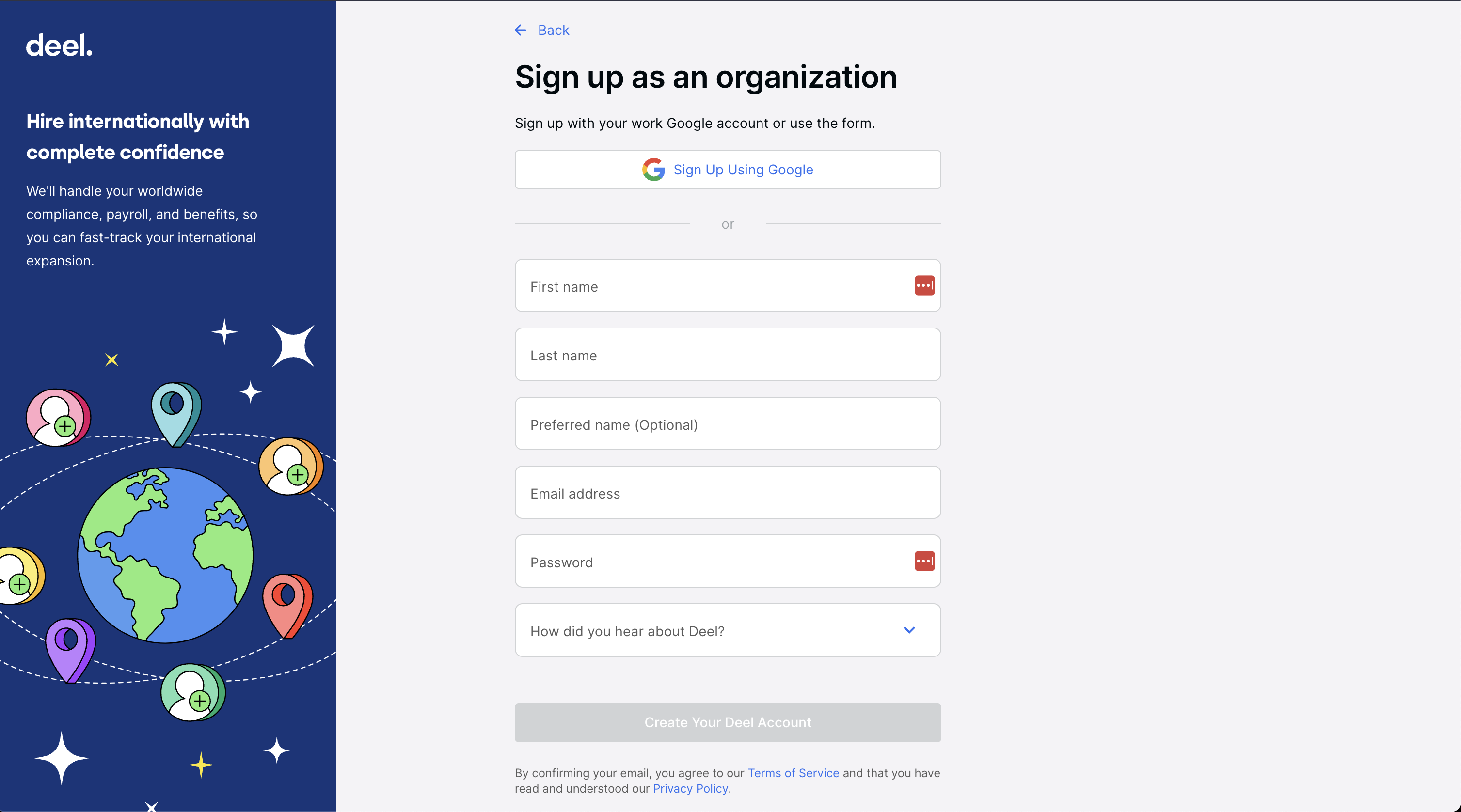 2. To connect to this company via Finch, follow the steps outlined [above](#connecting-to-a-provider-sandbox) to configure Finch Connect to display provider sandboxes, select Deel, and input your Deel credentials into Deel's OAuth flow.
### Square
Complete the following steps to connect to Square's sandbox environment. See the [Square developer docs](https://developer.squareup.com/docs/devtools/sandbox/overview#sandbox-limitations) for information on Square sandbox limitations.
1. [Sign up for a free Square developer account](https://squareup.com/login?app=developer\&lang_code=en-US\&return_to=https://developer.squareup.com/apps?lang=en-US\&country=us).
2. After configuring your sandbox application, navigate to Sandbox Test Accounts and open the Square Dashboard for the application you created.
You must have this dashboard open in another window in order for the OAuth flow to work properly
2. To connect to this company via Finch, follow the steps outlined [above](#connecting-to-a-provider-sandbox) to configure Finch Connect to display provider sandboxes, select Deel, and input your Deel credentials into Deel's OAuth flow.
### Square
Complete the following steps to connect to Square's sandbox environment. See the [Square developer docs](https://developer.squareup.com/docs/devtools/sandbox/overview#sandbox-limitations) for information on Square sandbox limitations.
1. [Sign up for a free Square developer account](https://squareup.com/login?app=developer\&lang_code=en-US\&return_to=https://developer.squareup.com/apps?lang=en-US\&country=us).
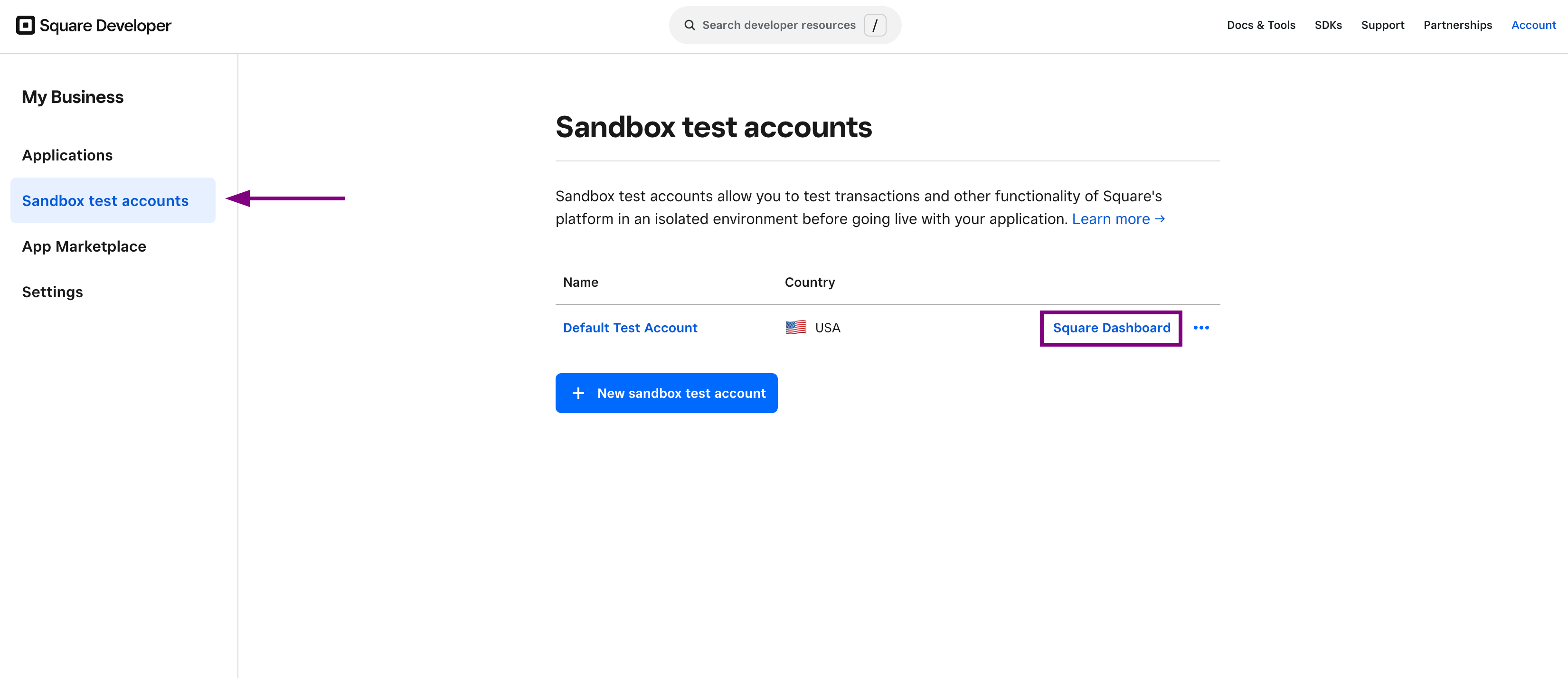
2. After configuring your sandbox application, navigate to Sandbox Test Accounts and open the Square Dashboard for the application you created.
You must have this dashboard open in another window in order for the OAuth flow to work properly
 3. Use the OAuth flow in Finch Connect to connect your new account.
## Trial Accounts
Though not all employment systems offer the test environments described above, many offer self-serve trial accounts. The difference is that these accounts are not in a separate sandbox environment and are meant to eventually convert into real production accounts. However, for testing purposes they can function in much the same way as provider sandbox accounts. Finch also supports connecting to these trial accounts via your Sandbox application. **Note that many of these trial accounts are only offered for a limited period of time, so testing should be performed within that trial period.**
#### Bamboo HR
[Sign up for a free Bamboo HR demo account](https://www.bamboohr.com/signup/) and follow the instructions in Finch Connect to connect your account.
#### Bob
To get a test account for Bob, [fill out an application](https://dash.partnerstack.com/application?company=hibob\&group=techpartnerapplication\&gref=page) and accept Bob's Terms and Conditions. In the notes section, let them know you are a Finch customer and are looking for a test instance.
#### Sage
[Sign up for a free Sage account](https://sage.hr/register). Follow the instructions in Finch Connect to create an API token for your Sage account. **Make sure to hit "Start Fresh" at the top of the page before following the instructions to obtain an API token.** Otherwise, the Integrations tab will not be present under Settings
#### Personio
[Sign up for a Personio partner trial](https://www.personio.com/partner-trial/) and follow the instructions to create an account. Once you have an account, follow the instructions in Finch Connect to generate an API token for your Personio account.
#### Humaans
[Sign up for a free Humaans account](https://app.humaans.io/signup). Follow the instructions in Finch Connect to create an API token for your Humaans account.
***
## Checkpoint + Next Step
After completing this step, you will have tested your application thoroughly
with mock data from the sandbox and any live providers you set up. You are now
ready to connect employers in bulk. Therefore, since you will be [managing
multiple connections](/implementation-guide/Backend-Application/Manage-Connections)
simultaneously, you must make sure to [store the connection's access
token](/implementation-guide/Backend-Application/Store-Tokens) properly. This reduces the
risk of sensative employer data being exposed.
## Learn more
* [Finch Sandbox](/implementation-guide/Test/Finch-Sandbox)
3. Use the OAuth flow in Finch Connect to connect your new account.
## Trial Accounts
Though not all employment systems offer the test environments described above, many offer self-serve trial accounts. The difference is that these accounts are not in a separate sandbox environment and are meant to eventually convert into real production accounts. However, for testing purposes they can function in much the same way as provider sandbox accounts. Finch also supports connecting to these trial accounts via your Sandbox application. **Note that many of these trial accounts are only offered for a limited period of time, so testing should be performed within that trial period.**
#### Bamboo HR
[Sign up for a free Bamboo HR demo account](https://www.bamboohr.com/signup/) and follow the instructions in Finch Connect to connect your account.
#### Bob
To get a test account for Bob, [fill out an application](https://dash.partnerstack.com/application?company=hibob\&group=techpartnerapplication\&gref=page) and accept Bob's Terms and Conditions. In the notes section, let them know you are a Finch customer and are looking for a test instance.
#### Sage
[Sign up for a free Sage account](https://sage.hr/register). Follow the instructions in Finch Connect to create an API token for your Sage account. **Make sure to hit "Start Fresh" at the top of the page before following the instructions to obtain an API token.** Otherwise, the Integrations tab will not be present under Settings
#### Personio
[Sign up for a Personio partner trial](https://www.personio.com/partner-trial/) and follow the instructions to create an account. Once you have an account, follow the instructions in Finch Connect to generate an API token for your Personio account.
#### Humaans
[Sign up for a free Humaans account](https://app.humaans.io/signup). Follow the instructions in Finch Connect to create an API token for your Humaans account.
***
## Checkpoint + Next Step
After completing this step, you will have tested your application thoroughly
with mock data from the sandbox and any live providers you set up. You are now
ready to connect employers in bulk. Therefore, since you will be [managing
multiple connections](/implementation-guide/Backend-Application/Manage-Connections)
simultaneously, you must make sure to [store the connection's access
token](/implementation-guide/Backend-Application/Store-Tokens) properly. This reduces the
risk of sensative employer data being exposed.
## Learn more
* [Finch Sandbox](/implementation-guide/Test/Finch-Sandbox)