> ## Documentation Index
> Fetch the complete documentation index at: https://developer.tryfinch.com/llms.txt
> Use this file to discover all available pages before exploring further.
# Factorial HR
# Factorial HR Onboarding Guide
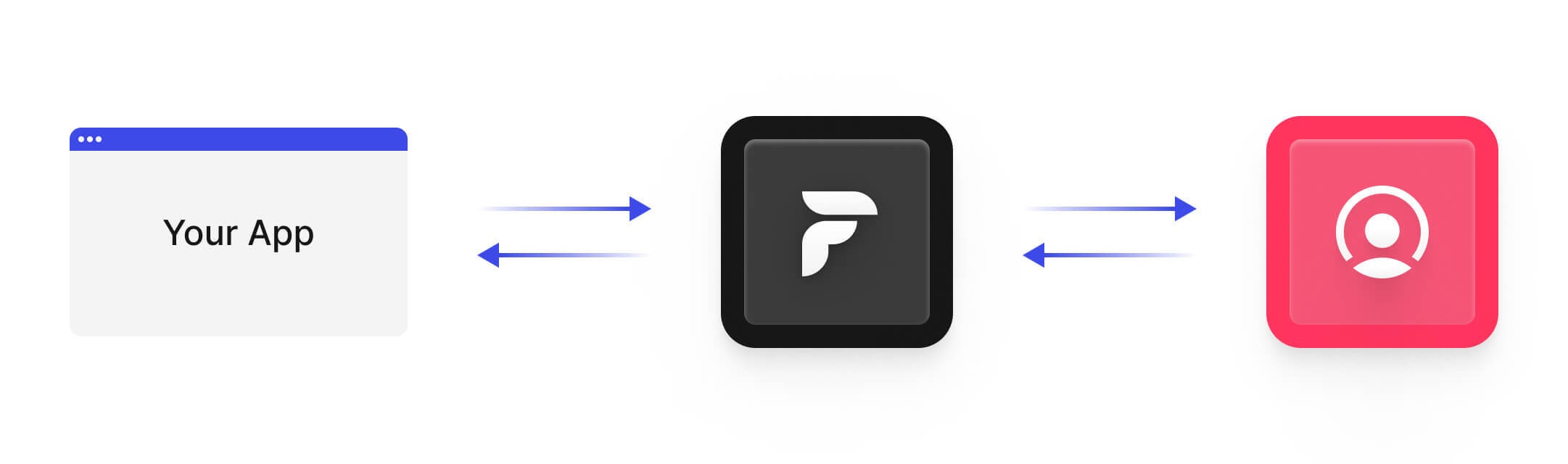 Integrating with Factorial through Finch is a simple 3-step process! To get set up, you need to:
1. Create a Factorial account
2. Create a Factorial OAuth application
3. Connect your Factorial OAuth application to Finch
This page explains each of these steps in detail. Happy integrating!
## Step 1: Create a Factorial account
If your company does not already have an account with Factorial, you’ll need to create one. To create an account, follow the instructions below.
1. Navigate to **[https://factorialhr.com/get-started](https://factorialhr.com/get-started)** in your browser
## Step 2: Create a Factorial OAuth application
> To create a Factorial OAuth application, you must be an **Adminstrator**.
>
> **Administrator:** In Factorial, the Administrator role holds complete authority and can perform any action within the platform. Administrators have extensive visibility into company processes, decisions, and actions.
>
> More details can be found [**here**](https://help.factorialhr.com/about-the-administrator-role).
You’ll need to create a Factorial app for your customers to authorize your access to their data. Factorial uses OAuth 2.0’s authorization code grant flow to issue access tokens that grant access to specific groups of data.
Follow the instructions below to create your Factorial OAuth application.
1. Log into your organization’s Factorial account. If you do not already have a Factorial account, please follow the instructions laid out in the **Create a Factorial Account** section.
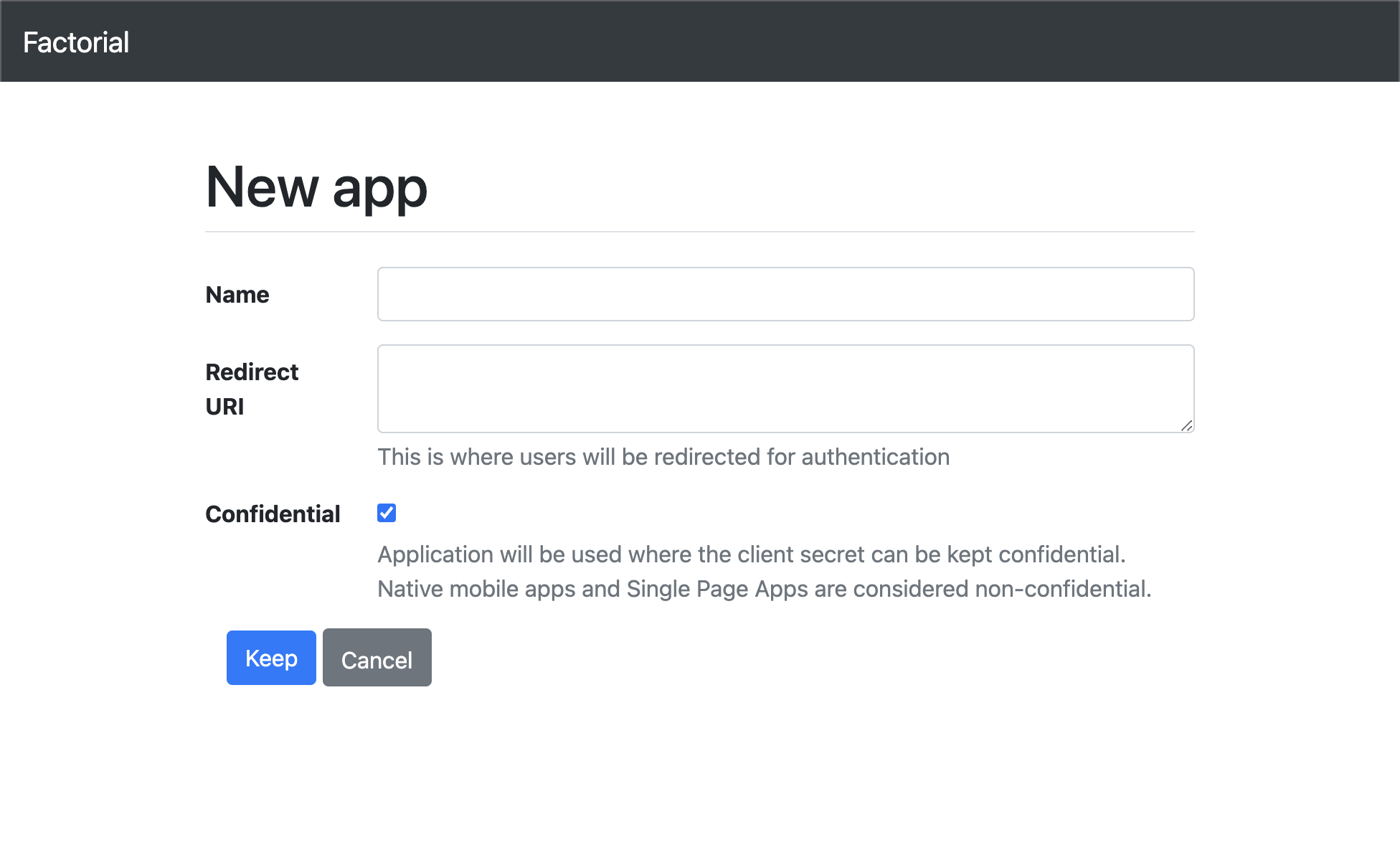
2. Follow Factorial's [**Create a new Oauth2 application**](https://apidoc.factorialhr.com/docs/create-a-new-oauth-application) guide to create your app. Be sure to set your app's Redirect URL to `https://connect.tryfinch.com/auth/factorial_hr`
Integrating with Factorial through Finch is a simple 3-step process! To get set up, you need to:
1. Create a Factorial account
2. Create a Factorial OAuth application
3. Connect your Factorial OAuth application to Finch
This page explains each of these steps in detail. Happy integrating!
## Step 1: Create a Factorial account
If your company does not already have an account with Factorial, you’ll need to create one. To create an account, follow the instructions below.
1. Navigate to **[https://factorialhr.com/get-started](https://factorialhr.com/get-started)** in your browser
## Step 2: Create a Factorial OAuth application
> To create a Factorial OAuth application, you must be an **Adminstrator**.
>
> **Administrator:** In Factorial, the Administrator role holds complete authority and can perform any action within the platform. Administrators have extensive visibility into company processes, decisions, and actions.
>
> More details can be found [**here**](https://help.factorialhr.com/about-the-administrator-role).
You’ll need to create a Factorial app for your customers to authorize your access to their data. Factorial uses OAuth 2.0’s authorization code grant flow to issue access tokens that grant access to specific groups of data.
Follow the instructions below to create your Factorial OAuth application.
1. Log into your organization’s Factorial account. If you do not already have a Factorial account, please follow the instructions laid out in the **Create a Factorial Account** section.
2. Follow Factorial's [**Create a new Oauth2 application**](https://apidoc.factorialhr.com/docs/create-a-new-oauth-application) guide to create your app. Be sure to set your app's Redirect URL to `https://connect.tryfinch.com/auth/factorial_hr`
 ## Step 3: Connect your Factorial OAuth application to Finch
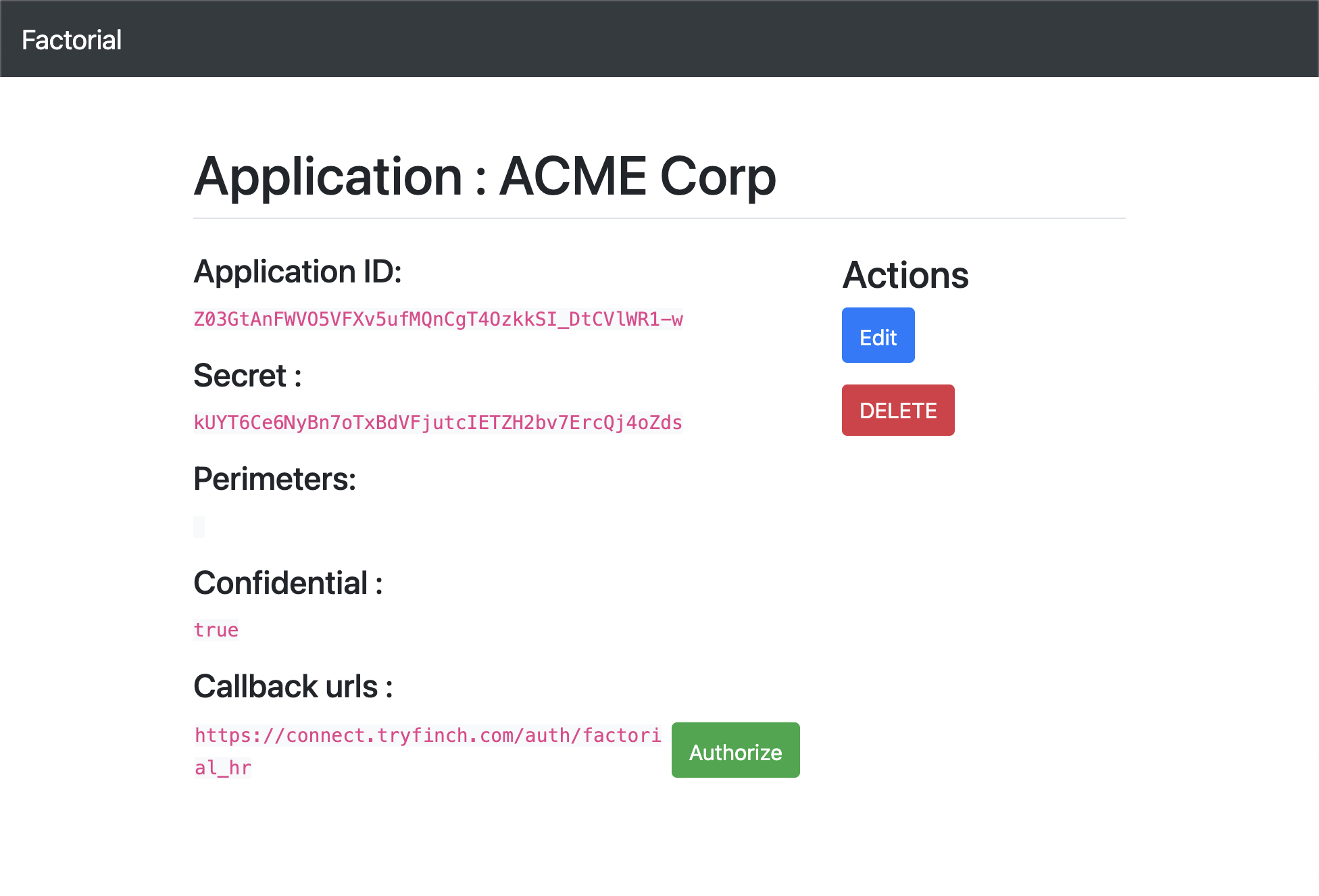
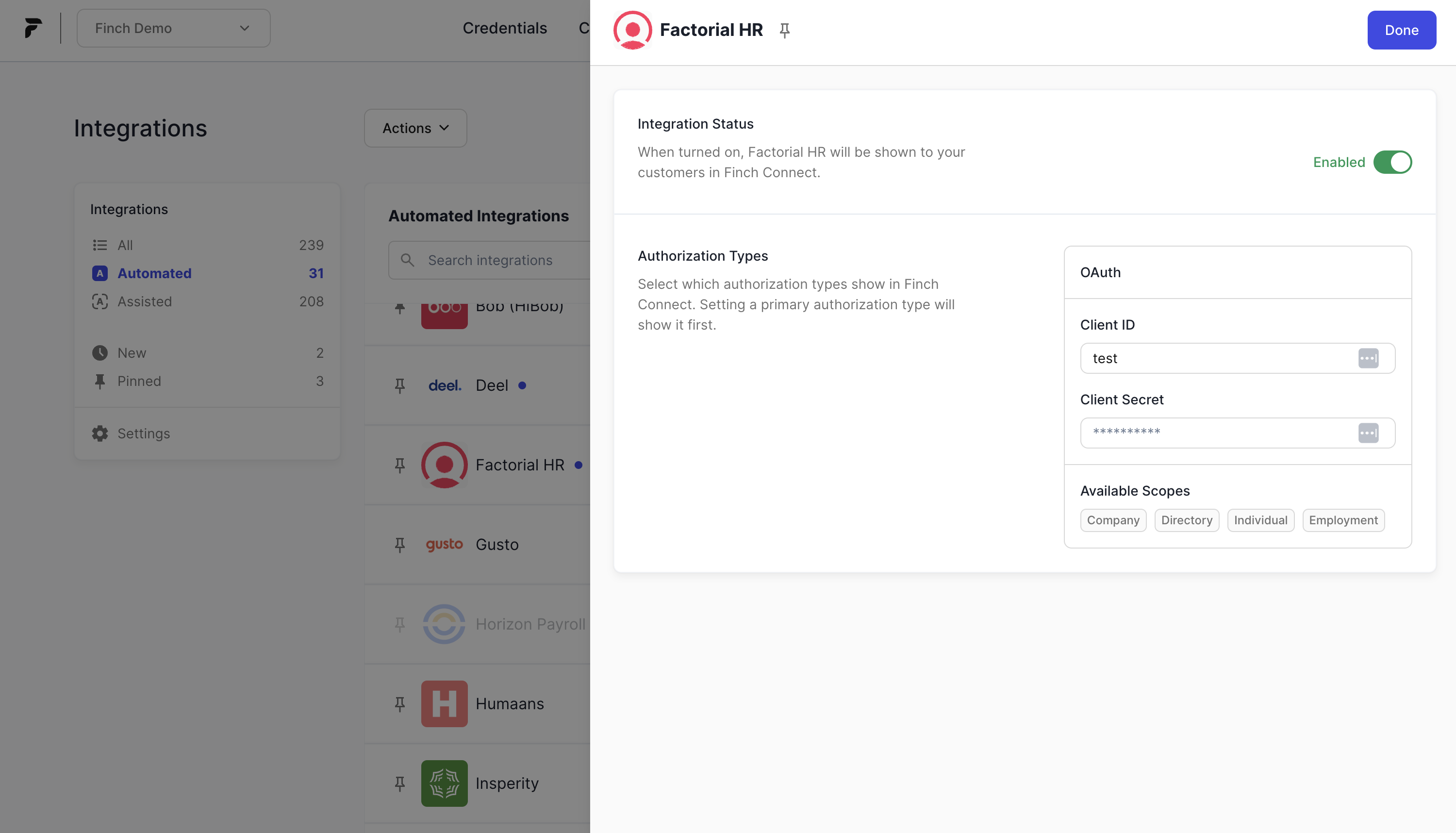
The final step in your process is to configure your Factorial integration with Finch. To do this, visit the Integrations tab of the [Finch Dashboard](https://dashboard.tryfinch.com), select Factorial, and enter the Application ID and Secret you generated in the previous step.
## Step 3: Connect your Factorial OAuth application to Finch
The final step in your process is to configure your Factorial integration with Finch. To do this, visit the Integrations tab of the [Finch Dashboard](https://dashboard.tryfinch.com), select Factorial, and enter the Application ID and Secret you generated in the previous step.
 That's it! You're now ready to start using Factorial with Finch. If you have any questions, please don't hesitate to reach out to your Finch account manager.